Prepare large background photos at 100–150 PPI at final print size, use the exact product template for bleed, and export a PDF with the printer’s required color settings. Close-viewed detail images may need 150–300 PPI. These are planning ranges, not Milin product specifications: the approved template and production instructions determine the minimum PPI, edge allowances, color profile, and PDF preset.
File Requirements at a Glance
| Setting | What to Confirm |
|---|---|
| Size and scale | Finished width and height, units, and artwork scale—for example, 3000 × 2400 mm at 1:10. |
| Resolution | The printer’s minimum effective PPI at final output size, not the original image’s resolution label. |
| Bleed and safe area | The template for the exact display model, including seams, frame coverage, and hidden sections. |
| Color | Accepted color spaces, ICC profile, conversion instructions, and brand-color references. |
| PDF export | Required preset, font handling, image downsampling, transparency, and crop marks. |
Resolution at Final Print Size
For large backwall displays, calculate resolution using the size each photo occupies. A photo covering 1 meter of a 3-meter wall needs enough pixels for that 1-meter area, not the whole wall.
Effective PPI = image width in pixels ÷ printed width in inches
Printed width in inches = width in centimeters ÷ 2.54
A 6000-pixel-wide photo delivers about 152 PPI at 100 cm wide, 76 PPI at 200 cm, and 51 PPI at 300 cm. To meet a 100 PPI requirement, it can be no wider than 152.4 cm. Check the height separately using the pixels left after cropping.
| Print Size, Width × Height | Pixels at 100 PPI | Pixels at 150 PPI |
|---|---|---|
| 85 × 200 cm | 3346 × 7874 | 5020 × 11811 |
| 100 × 200 cm | 3937 × 7874 | 5906 × 11811 |
| 300 × 240 cm | 11811 × 9449 | 17717 × 14173 |
These rounded dimensions exclude bleed and assume one photo fills the graphic. They are calculated from physical size and PPI, not from printer test results.
In Adobe InDesign, select the placed image in the Links panel and check Effective PPI in Link Info. A 300 PPI image enlarged to 200% has an effective resolution of 150 PPI. With 1:10 artwork, divide that effective value by another 10 to find the final output PPI.
Changing an image’s PPI label without resampling adds no pixels. Saving a JPEG inside an AI or PDF file does not make it vector artwork. Keep logos and text as vectors where possible; inspect any AI-enlarged photos for altered product labels, measurement marks, and faces.
Reduced-Scale Artwork
| Artwork Scale | Target PPI at Final Size | Effective Image PPI in the Artwork |
|---|---|---|
| 1:1 | 150 | 150 |
| 1:2 | 150 | 300 |
| 1:10 | 150 | 1500 |
A 3000 × 2400 mm display built at 1:10 has a finished-size layout of 300 × 240 mm before any separately added bleed. If PDF export downsamples its photos to 300 PPI, those photos will deliver only 30 PPI after tenfold enlargement. Check the export preset and mark the file Scale1-10. These PPI values apply to raster images, not vector paths.
Bleed and Safe Areas
Do not apply a standard 3 mm bleed to every display. Retractable banners need artwork for the section inside the base. Tension fabric displays may need sewing and side-wrap allowances. SEG graphics need space for silicone edging and frame coverage. Check the template’s artwork boundary, finished edge, and visible area separately; sewing or wrap allowances may be marked separately from bleed.
For example, a 1000 × 2000 mm finished panel with 10 mm bleed on every side needs artwork covering 1020 × 2020 mm. If important content must also sit 20 mm inside each finished edge, its placement area is 960 × 1960 mm. These allowances are calculation examples, not production specifications.
- Extend background colors and photos to the bleed boundary; do not leave the added area blank.
- Do not add bleed again if the template already includes it.
- If the entire PDF is built at 1:10, 10 mm of finished bleed becomes 1 mm in the file. Do not rescale allowances already built into the template.
- Keep logos, text, and QR codes inside the safe area and clear of installation hardware.
- Use the template’s artwork dimensions rather than measuring the assembled frame. Do not add your own fabric stretch or shrinkage correction unless production requests it.
Panel Joins
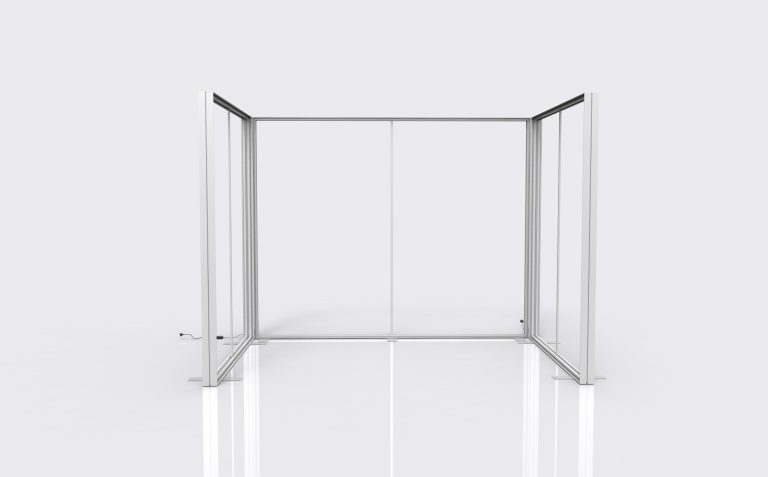
A 300 cm wall made from three equal panels without overlap has joins at 100 cm and 200 cm from the left edge. Check whether those positions cut through faces, logos, product numbers, or QR codes. Use the actual template positions where panels overlap.
Label files Panel01, Panel02, and Panel03, and include an assembly preview. For a custom booth with several walls, add the wall or frame reference to each filename.
Color Setup
Ask whether the printer wants CMYK artwork or accepts tagged RGB images for conversion in its output workflow. If you must convert to CMYK, request the destination ICC profile or export preset first. Do not choose an arbitrary CMYK profile simply because the job will be printed.
The International Color Consortium describes output profiling as a process based on measured device output. A profile for one print condition should not be assumed suitable for another.[1]
For brand-color matching, supply the exact Pantone reference and library or an approved physical sample. A Pantone reference is a target, not a promise that the printer will use spot ink or reproduce every color exactly.
Approve samples separately when the same color appears on fabric, rigid board, and backlit material. Record the material, sample number, viewing conditions, and approver. If approval depends on measured color differences, agree on the measurement method and tolerance before production.
Black and White Objects
C100 M100 Y100 K100 totals 400% ink coverage and should not be used as a default rich black. Get the printer’s settings for small black text and large black backgrounds.
Check white text and shapes for accidental overprint, which can make them disappear. White ink on clear or colored material needs a separately agreed layer setup and spot-color name; a normal white fill may not generate white ink.
PDF Export Checks
PDF/X-1a requires transparency to be flattened; PDF/X-4 supports live transparency, as documented in the PDF Association’s PDF/X standards overview.[2] PDF/X compliance alone does not confirm image resolution or fit to a display template. Reopen the exported PDF and check:
- Dimensions: Page size, scale, and bleed match the template and order.
- Images: Export has not reduced effective resolution below the required level.
- Fonts: Fonts are embedded or outlined as requested. Keep an editable copy before outlining.
- Effects: Transparency, shadows, and gradients match the source file, without white boxes or unexpected banding.
- Overprint: White objects have been checked in software with output-preview tools.
- Guides: Template instructions and dimension labels will not print. Crop marks appear only if requested.
- Content: Product numbers, contact details, dates, panel order, and QR destinations match the approved copy.
If Canva or PowerPoint cannot supply the required bleed, ICC settings, or PDF standard, arrange prepress work with the printer. Choosing “Print PDF” does not confirm those requirements.
Proofing Before Production
Use a screen PDF to approve wording, layout, and panel order—not exact printed color. A 300 × 240 cm graphic reduced to 30 × 24 cm has ten times the effective PPI if the pixel data stays the same, so a small proof can hide low-resolution images. For detail approval, print a crop containing text, a logo, or product detail at its finished size—for example, a 30 × 30 cm section.
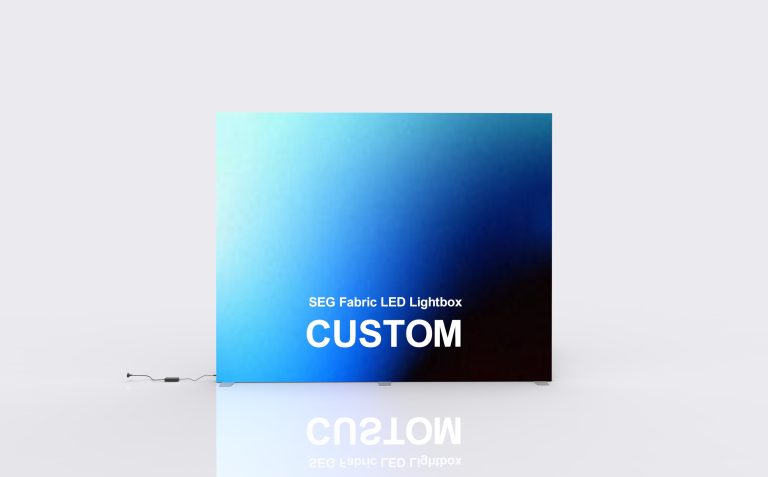
For LED lightbox displays, check the production-material sample both unlit and lit. Use lighting close to the finished display and inspect brand colors, dark product edges, and pale backgrounds for color shifts, lost detail, or streaks.
QR Code Testing
A standard QR Code requires a clear border at least four modules wide on every side; a module is one of its smallest squares.[3] Keep it away from seams, folds, and reflective areas.
Print the code at finished size on the intended material. If visitors are expected to scan from about 50 cm away, test at that distance and confirm that the correct page opens. The usable distance depends on code size, data density, print quality, and lighting.
File Handoff Details
Finished size: ____ wide × ____ high, in mm. Artwork scale: ____.
Template version: ____. Bleed: ____, measured at finished size / artwork scale.
Lowest effective image PPI at final size: ____ / no raster images.
Color mode and ICC profile or export preset: ____.
Brand-color reference and approved sample: ____.
Panel count and installation order: ____.
Approved production filename and version: ____. Approved by: ____. Approval date: ____.
Example filename: Brand_Backwall_3000x2400mm_Scale1-10_V03_Print.pdf