Build the artwork to the printer’s template, extend backgrounds through the bleed, and keep text and logos inside the safe area. Check image resolution at the final printed size, embed or outline fonts, and export in the requested colour space and file format. For colour-critical work, approve a backlit fabric proof before production.
Size and Bleed
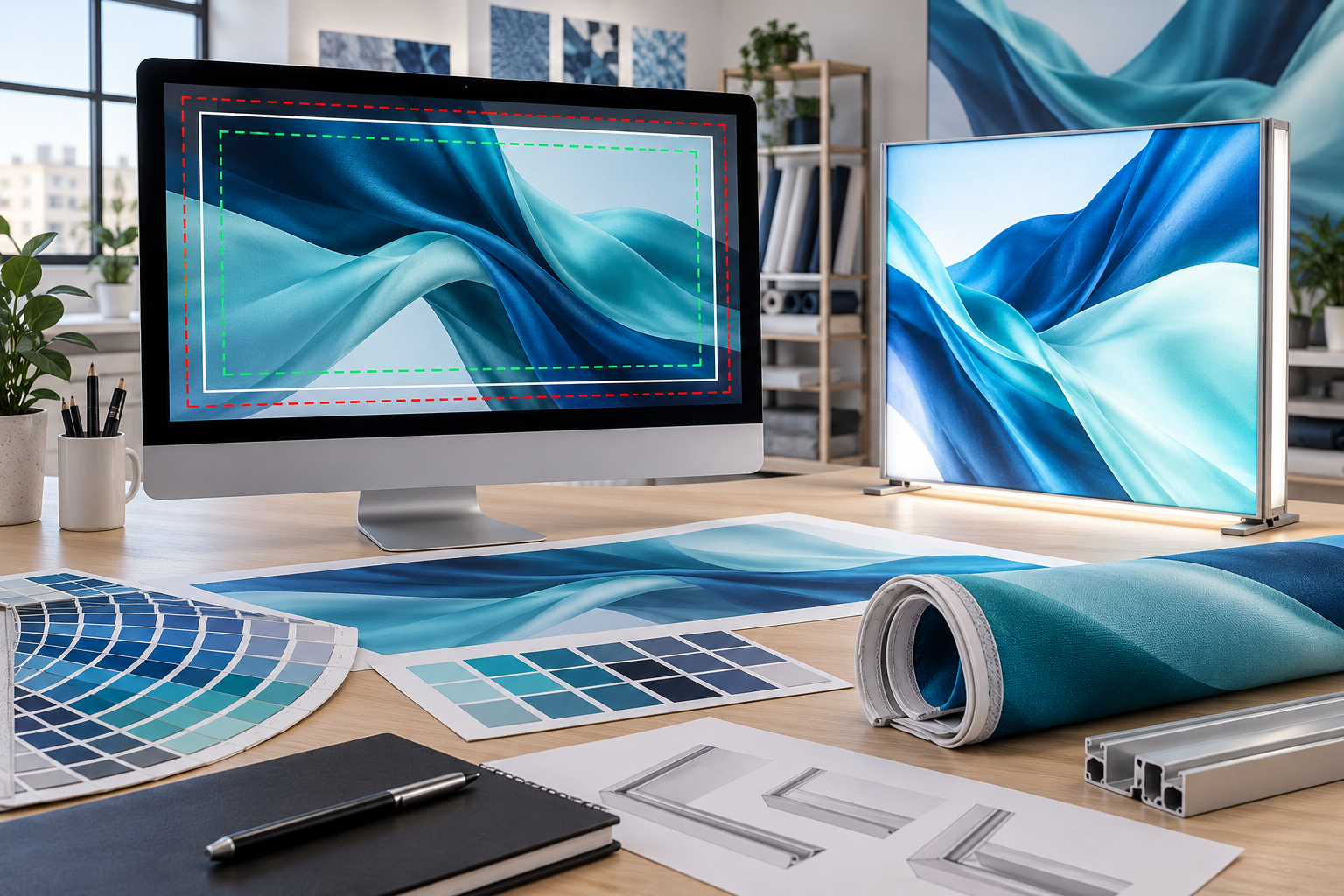
Use the template for your exact LED lightbox model. Confirm whether its dimensions describe the visible area or the complete print file. The frame’s outside measurements and an old, stretched fabric graphic are not reliable substitutes.
For example, a printer might specify a 1000 × 2000 mm visible area, 25 mm of bleed on each side, and a safe area inset 40 mm from each visible edge:
| Setting | Full size | At 1:10 scale |
|---|---|---|
| File size including bleed | 1050 × 2050 mm | 105 × 205 mm |
| Bleed per side | 25 mm | 2.5 mm |
| Safe area | 920 × 1920 mm | 92 × 192 mm |
| Minimum distance from the file edge to key content | 65 mm | 6.5 mm |
These are calculation examples, not standard SEG allowances. Follow the order template and confirm whether bleed and sewing allowances are already included. Don’t add them twice or apply your own fabric-stretch compensation.
Image Resolution
Required pixels = printed size in mm ÷ 25.4 × target PPI. Calculate both width and height using the pixels remaining after cropping.
| Printed image width | At 100 PPI | At 150 PPI |
|---|---|---|
| 500 mm | 1969 pixels | 2953 pixels |
| 1000 mm | 3937 pixels | 5906 pixels |
| 2000 mm | 7874 pixels | 11811 pixels |
Pixel counts are rounded. The two PPI values are examples, not universal requirements. Give the printer the finished dimensions, closest viewing distance, and image content so they can confirm the target resolution.
If the final print needs at least 100 PPI, raster images must have an effective resolution of at least 200 PPI in a 1:2 file or 1000 PPI in a 1:10 file. Vector text and paths do not need this adjustment.
Inspect photos at 100% pixel zoom for blurred labels, soft faces, and compression blocks. Changing the PPI setting without changing the pixels adds no detail. After AI upscaling, compare product numbers, packaging text, and logo shapes against the originals.
Colour Settings
Ask whether the printer wants CMYK artwork or RGB images with embedded profiles. Confirm who will handle the conversion and which output profile to use. A printer profile applies to the substrate and inks it was made for.[1]
Identify critical brand colours with Pantone references, brand specifications, or an approved physical sample. Treat these as matching targets, not a guarantee of an exact result. Approve test swatches by number rather than asking for a colour to be “a little brighter.”
Use the printer’s black mix and total ink limit. Setting C, M, Y, and K to 100% each gives 400% total ink coverage; it is not a default recipe for a deeper backlit black.
Text, Logos, and QR Codes
Embed fonts or convert them to outlines as requested, keeping an editable copy. Check punctuation, special characters, and numbers after export. At 1:10 scale, 3 pt text becomes 30 pt on the finished graphic. Test the smallest text at full size and at the intended viewing distance.
Use the original vector logo where available. An AI or PDF file can still contain a low-resolution bitmap, so inspect its contents rather than relying on the extension.
A standard QR code needs a clear border at least four modules wide on all four sides; a module is one small square in the code.[2] Keep it proportional and clear of seams.
If visitors should scan from 1 metre away, test the lit sample with two phone models at 0.5 and 1 metre. Confirm that both open the correct page. These are example test distances, not a universal QR sizing rule.
Panel Layout
For a double-sided SEG fabric lightbox, label files Panel-A and Panel-B and mark the viewing direction. Don’t mirror artwork unless the printer requests it.
For a modular SEG lightbox display, match each file to a numbered frame plan. A three-panel arrangement needs an overall layout and clearly identified artwork for all three panels, supplied in the printer’s requested format.
Have the printer mark frame boundaries, any fabric seams, and finishing areas before final placement. Keep faces, logos, QR codes, and small text clear of those areas.
Export and Preflight
Export the requested PDF or TIFF, or package the source file with its linked images. Supply fonts only where their licence permits it; otherwise use the agreed embedding or outlining method.
- Check page dimensions, units, scale, orientation, and page count. Remove any unintended “fit to page” scaling.
- Check exported image resolution with a preflight tool. Account for the file scale and confirm that downsampling has not reduced it below the target.
- Verify embedded fonts or inspect outlined letter shapes and spacing.
- Use overprint preview to check white objects and transparent overlaps for missing or changed content.
- Remove template labels, dimension arrows, and safe-area boxes. Keep required production paths on the specified layer or in a separate file.
- Add crop marks, registration marks, and colour bars only when requested.
Reopen the exported file for the final check. Generate the approval preview from that file, not from an earlier draft.
Backlit Proofs
Request a proof on the production fabric for colour-critical artwork, a new fabric, or a large order. Include the brand colours, dark gradients, product labels, smallest text, and QR code that appear in the design.
Print detail samples at 1:1 scale. A 100 × 100 mm crop can show whether a product label holds up at full size. A 2-metre graphic reduced to 200 mm high is a layout proof, not a sharpness test.
Use the actual lightbox lighting where possible. If the proof uses 6500 K lighting and the installation uses 4000 K, check the colours under the installation conditions before approval. Matching colour temperature alone does not guarantee identical colour rendering.
Final Handoff
- Production file: Include the project, panel, version, and scale in the filename, such as
Project_Panel-A_v03_Scale-1-1_Print.pdf. - Approval preview: Label it “For reference only” to distinguish it from the production artwork.
- Order notes: State the finished dimensions, file scale, quantity, panel positions, and approved version.
- Proof record, if supplied: Record the approved sample number, fabric, print mode, lighting conditions, and approval date.